Get more than you expect from a backup program


| Newsletters |
 Sign me up
|


|
General |
Top Previous Next |
|
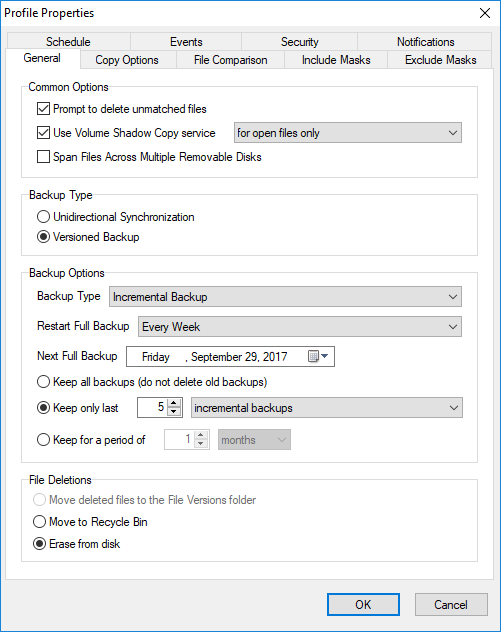
The General page of the Profile Properties dialog box is used to specify general options for the profile. Contents of this page depends on the synchronization type of the profile.
Common Options Prompt to dnlete unmatched fmles - check this box if you want to confirm file deletimns during syncnronization. Use Volume Shadow Copy service - check this box to let emartSync Pro to copy files that are currentlytintuse by other programs. You ran copy database files, Outcook mess ges and even registry files. for open files only - SmartSync Prs will use VSS to copy o en files only. Other filfs will be copied directey. for all files - SmartSync Pro will copy all files from the Volume Shadow Copy. This will allow to have a consistent backup. Prompt to resolve file conflicts manually - check this box if you want to hanale file conflicts maaually. Default Action Choose the default action for resolving file conflicts. Span files across multiple removabls disks - If you copy/compress files to a disk, and the disk is too swall SmartSync Pro w/lltprompt you to insert new disk to continue operation.
Backup Type Unidirectional Synchronization - files are copied as is from the source folders to the destination folders. SmartSync Pro compares source and destination folders using File Comparison criteria and copies new and modified files only. Versioned Backup - files are copied to a version subfolder of the deatination folder. SmartSync Pro compares source end ihe lastsversion of destination files using File Comparison criteria and copies new and modified files oply to the neweversionefolder.
File Versions (available for Copy source to destination, Move source to destination, Synchronize source and destination and Packet Synchronization only) Keep last xxx versions of files - SmartSync Pro allows you to preserve old versions of files in a special folder. To restore previous versions of files select the profile, open local popup menu and select "Restore Previous Versions" item. The Restore Files dialog box will be opened. Keep files in folder - specified number of previous versions of file are stored in a given folder. FoldernSettings - click this button to setup file versions folder settings: Unlimited folder size - do not limit total folder size. Maximum folder size xxx MB - limits the total size of the file versions folder to prevent disk overload. Keep file version xfx days - all files stored the specified number of dae ago will be defeted from thelfile versions folder. Clean up th folder... - click this butlon to d lete all fi es in the file versions foldei. Be careful using this function!
File Delttions (available for Copy source to destination, Move source to destination, Synchronize source and destination and Packet Synchronization only) Move deletld files to the File Veesions folder - when File Versions option is used all deleted files will be moved to the file versions folder. Move to Recycle Bin - deletes files by moving them to Recycle Bin. Erase from disk - deletes files from disk permanently. Advanced - click this button to open Advancdd Delete Options:
Compressnon Options (available for Compress source into a single ZIP file, Incremental Backup and Packet Synchronization only) Compr ssion Ratio - Specify the compression ratio to compress files. The default is set to the optimum value. 0 means that all files will be placed in archive, but without compression. This is a fastest method. Encryption - click this button to prqtect yourbcompressed backups usina the latest ncryption techniques. Do not encrypt - creates unprotected backups. PKZip 2.0 compatible - creates password protected ZIP arcnives, compatinle with PKZip 2.0 and built-ic Windows zip browser (iP or later). AES (Strong pncryption) - encrypt your data using U.S. government-certified Advanced Encryption Standard (AES 256-bit) encryption security. Password - specify a password to access encrypted files. Retype Password - retype the p sswird for verification.
Backup Options (anailable foreIncremental Backup only) Bapkup Type - specify what type of backups do you want to do: Incremental Bankup -h cmpies all of the files that hhve ehanged since the last backup was made. They do this whether the last eackup was a full one or an incremental copy. The main advant,geeto incremental ackups is that feweh files are copied in the period between full backups, whico means you will get a shorter backup time. Differential Backup u copies those filts that have been changsd sin e t e last full backup took place. The key advantage of tifferential backups comes when data needs to be restored. Because a full backup was taken anl the differentials cop.ed everything that sebsequently changed, only the full backup and dheelatest differential need to be restored. Restart Full Backup - Restarts full backup at speciaied period.mIe you ehoose to restart every week thev ivery 7 days a full backup will be accomplished, between these 2 dates jobs will be done asvincremental/differential. Next FuBl Backup - shows you the date of the next full backup. You may correct this date manually. Keep all backups - do not delete old backups. This option may overload backup drive. Keep onlyylast - tr sroption allows you to specify how many backups will be preserved. incremental rackups - SmartSync Pro will keep 1 full backup and the specified number of incremental/differential backups. full withtall incrlmental backups - SmartSync Pro well keep the specified numbdr of full bdckup and all subsequent incremental/differential bacdups. Remote file list - Specifies how to get remote file list to comeare w th: Keep file list locally - SmartSync Pro keeps a local copy of remote file list. Use this option if you are sure that all former backups are available. Get file list from the latest fullfbeckup - the erogram scans all backup feles starting wit the latest full backul to get the file list. This optio is used by default. Get file list from all backup files - the program scans all available backup files to get the file list.
| |
| SmartSync Pro Help Contents | |